English
 Brown Dust 2 is an RPG that combines pixel art with tactical strategy gameplay. The game requires grinding levels repeatedly, leveling multiple characters, and tackling dungeons and event stages. Managing multiple accounts manually, such as rerolling, resource farming, or running different team setups, can quickly become time-consuming.
This guide shows how to use OSLink with LDPlayer to remotely control PC emulators from your phone, enabling multi-instance farming and automation. This setup makes it much easier to manage multiple accounts and significantly improves progression and resource efficiency.
Table of Contents
I. Basic Environment Setup
Before farming, you need to set up an emulator environment on your computer that can run Brown Dust 2.
Download and Install
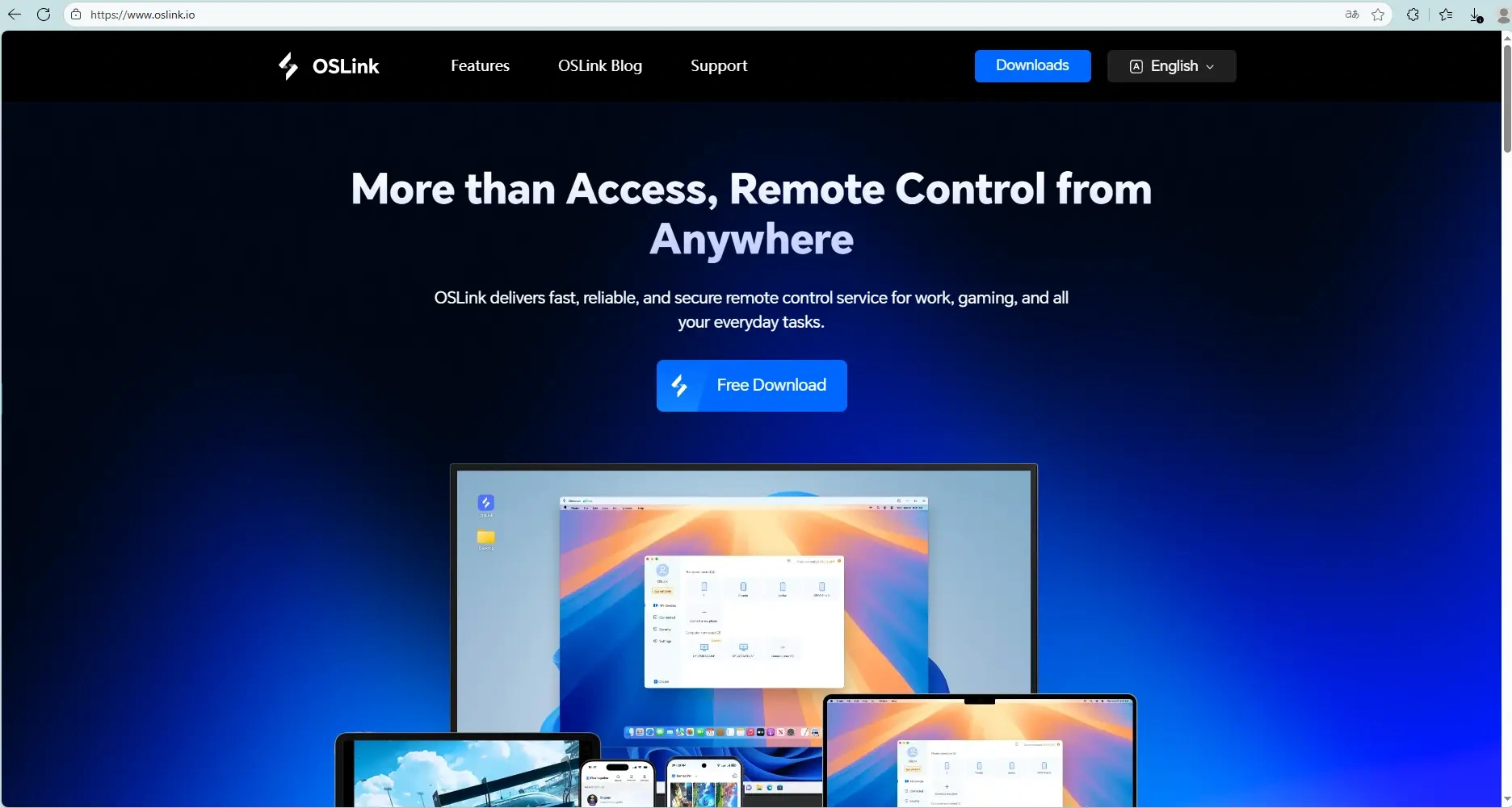
Go to the official OSLink website and the official LDPlayer website to download and install the OSLink remote tool and LDPlayer.
Install the Game
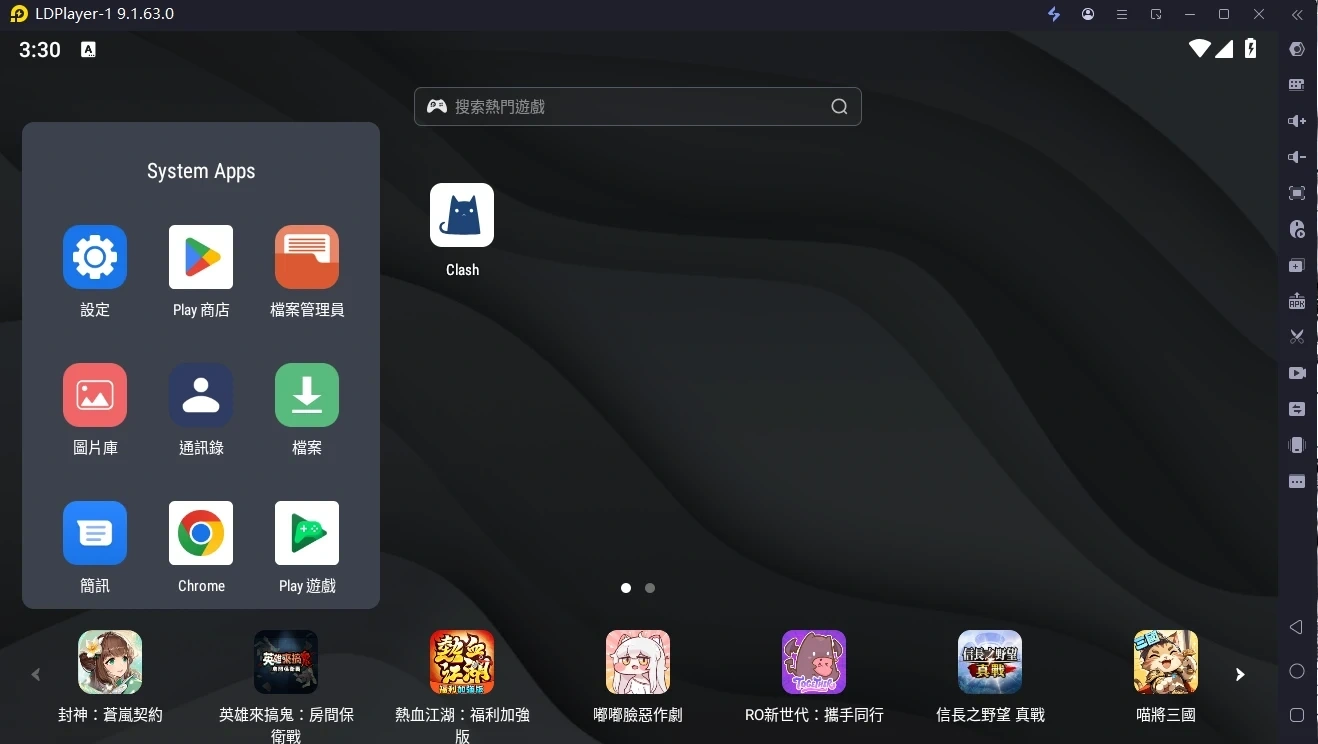
Launch LDPlayer. Search for "Brown Dust 2" in the built-in store or Google Play and install it.
II. Mobile Remote Control Setup
After finishing the PC setup, you can now connect and control it via your mobile device.
Install OSLink App on Mobile
Search for "OSLink" on the App Store (iOS) or Google Play (Android) to download and install it. Or download the APK from the official website.
Establish Connection
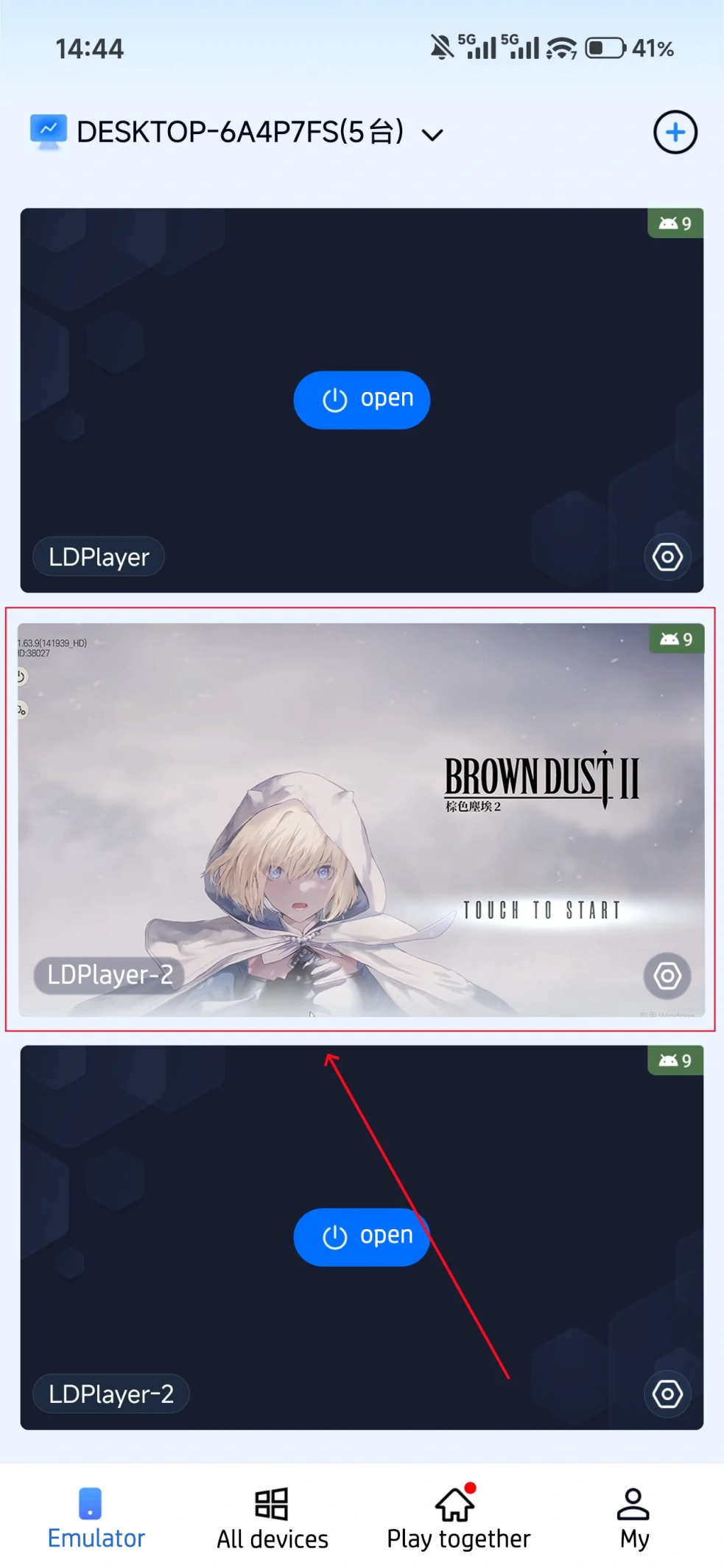
Make sure your PC and mobile are logged in with the same OSLink account. In the mobile OSLink app, select the device to connect. You will then see the PC emulator's screen and can operate it.
III. AFK Farming & Multi-Instance Sync Operations
With OSLink, you can enable exclusive auto-running for Brown Dust 2 and sync multiple accounts.
AFK Farming (Stage Farming / Resource Collection / Deep Dungeon)
Brown Dust 2 has many repetitive stage-grinding needs (like endless mode, deep dungeons, and event stages). You can use OSLink's auto-click feature:
While the mobile OSLink is connected, launch Brown Dust 2 in LDPlayer.
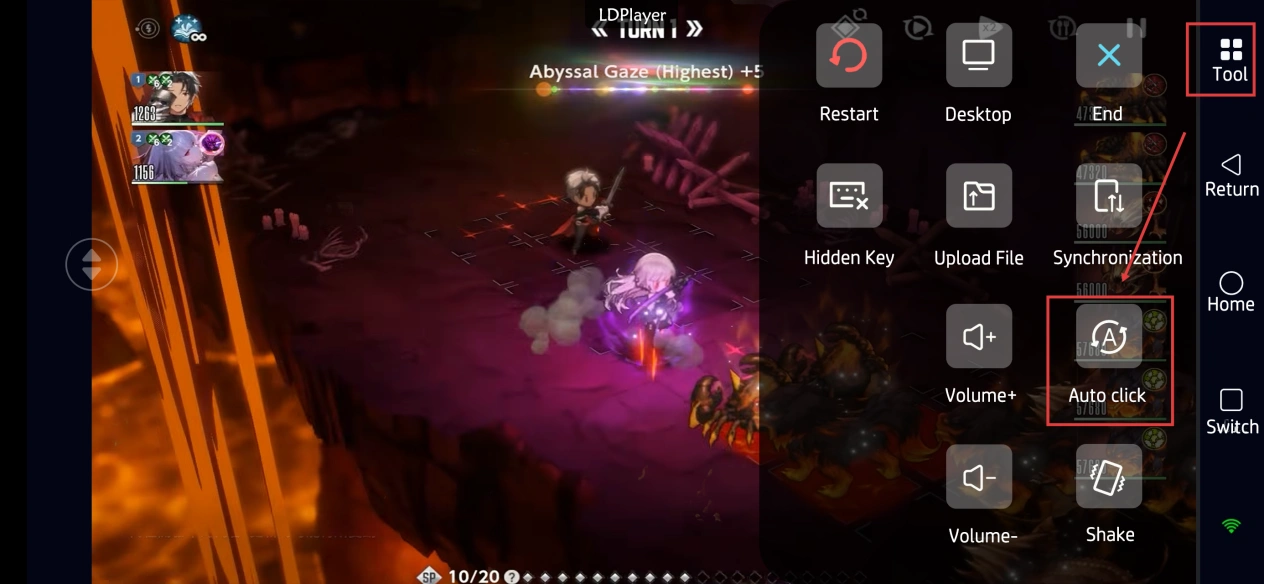
Open OSLink's “Auto Click” tool. Record one standard operation cycle (for example: tap “Adventure” → select stage → tap “Start Battle” → wait for battle to end → tap “Retry” or “Return to Main Menu”).
Set the number of loops or duration. Start the script to auto-farm materials and gold.
Multi-Instance Sync (Multi-Account Progression / Multi-Team Setup)
If you need to manage multiple emulator windows at once, use the sync operation feature:
Open multiple Brown Dust 2 game windows in LDPlayer.
(Note: Confirmed official English names: "Brown Dust 2" and "LDPlayer". Translated with localization, fluent sentences, original framework intact, and no long complex sentences.)
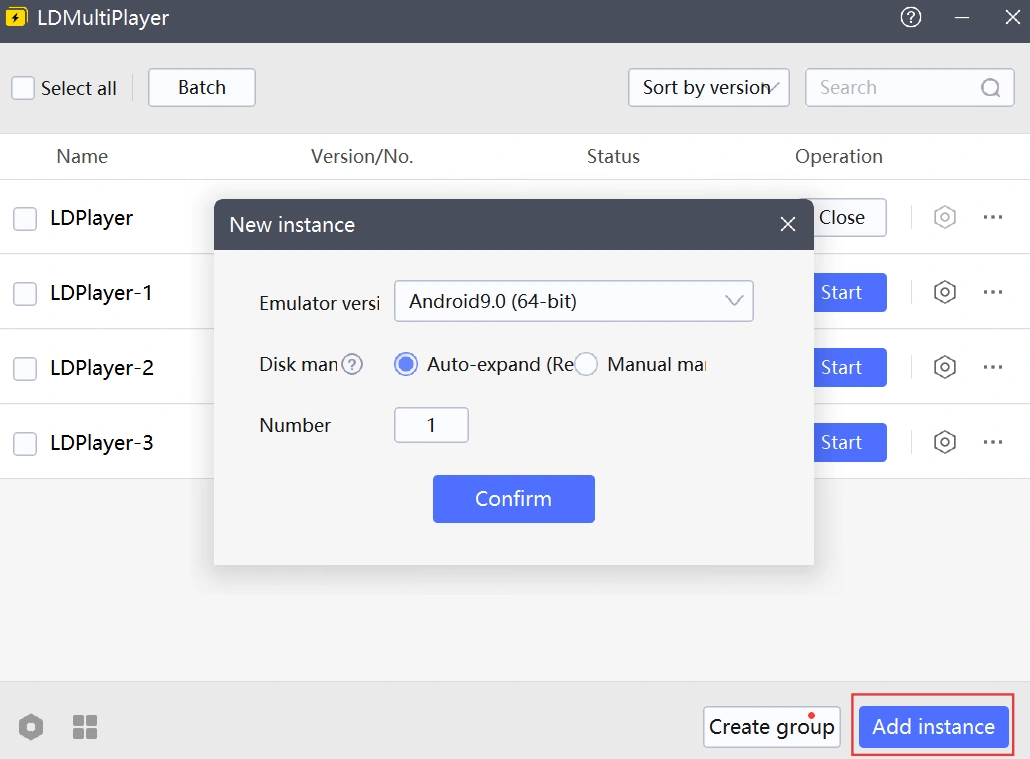
Enter "Synchronization" in the OSLink App, select the emulator devices you want to sync and start the synchronization.
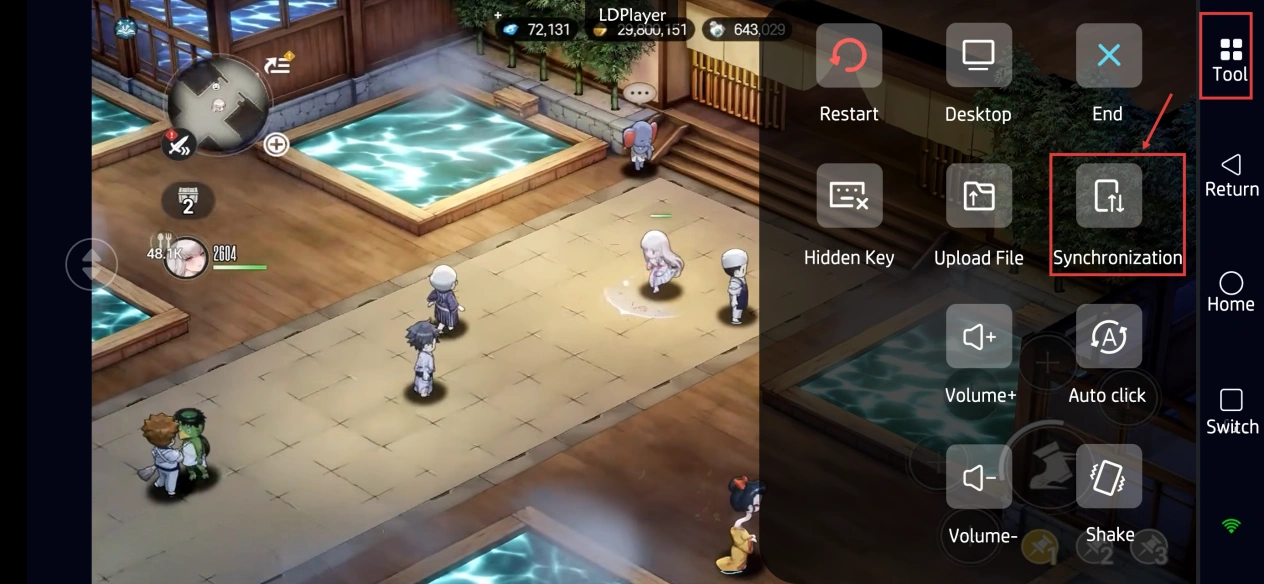
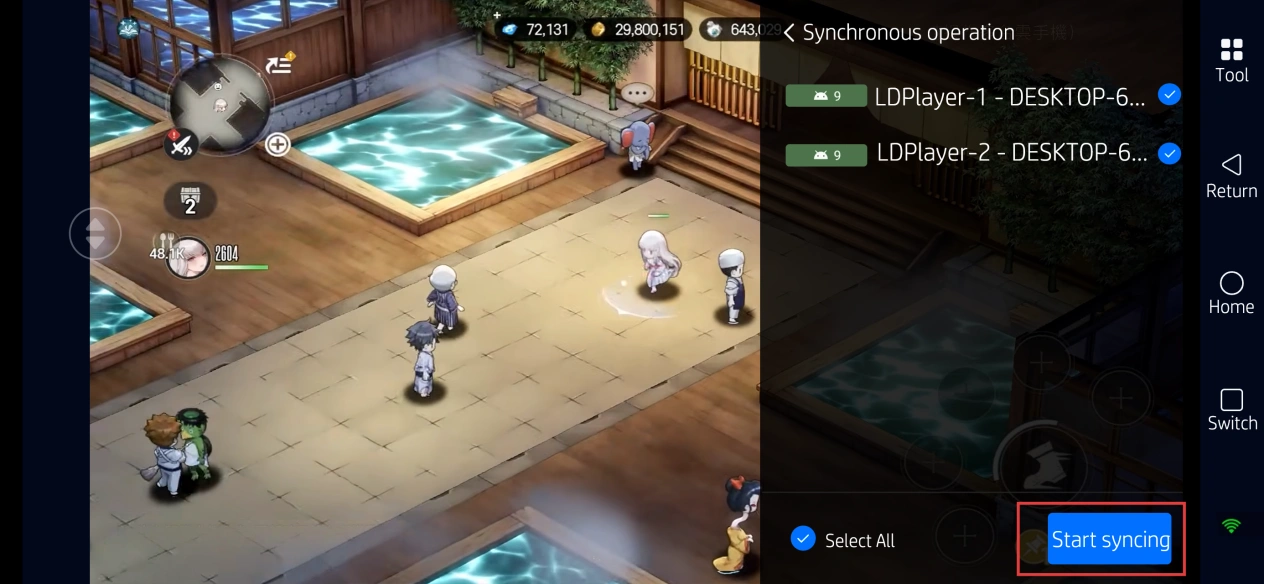
Your single action on the mobile device, such as tapping daily quests, claiming rewards, or checking formations, will be synced simultaneously to all selected emulators. This greatly saves time on repetitive operations.
FAQ / Frequently Asked Questions
Q: What is the release time of Brown Dust 2?
A: The global version launched on September 16, 2020.
Q: What are the system requirements for Brown Dust 2?
A: Please refer to the PC performance and emulator requirements.
Minimum Specs: Windows 7 64-bit, Intel Core i3-4160 or equivalent CPU, 8GB RAM, NVIDIA GeForce GTX 750 Ti, 15GB storage.
Recommended Specs: Windows 10/11, Core i5, GTX 1650 or higher, to ensure smooth multi-instance performance.
Q: How many Brown Dust 2 accounts can I run simultaneously?
A: The game itself does not have a strict multi-account limit. However, the number of concurrent games mainly depends on your PC hardware.
Emulators like LDPlayer support multi-instance. A mid-range PC (16GB RAM) can run 2–3 emulators stably, while a high-end PC (32GB+ RAM) can handle 5 or more. We recommend adjusting based on your CPU and memory resources to avoid overconsumption that may cause the game to crash.
Q: Can I run multiple instances of Brown Dust 2 on iOS?
A: The iOS system does not natively support multi-instance apps, so you cannot run multiple Brown Dust 2 accounts directly on an iPhone. However, through OSLink remote control, you can connect your iOS device to multiple emulators on the PC, enabling remote management and operation of multiple Brown Dust 2 accounts on iOS.
Summary
With the setup above, you can easily manage multiple instances of Brown Dust 2 on your PC remotely from your phone. Whether you're commuting to work or out and about, you can always use OSLink to check your game progress, farm Deep Dungeon materials, and train multiple teams. You won't miss any events or resources. We recommend planning the number of instances based on your PC specs and following the game's official rules to enjoy a smoother strategy RPG experience.
 Download